
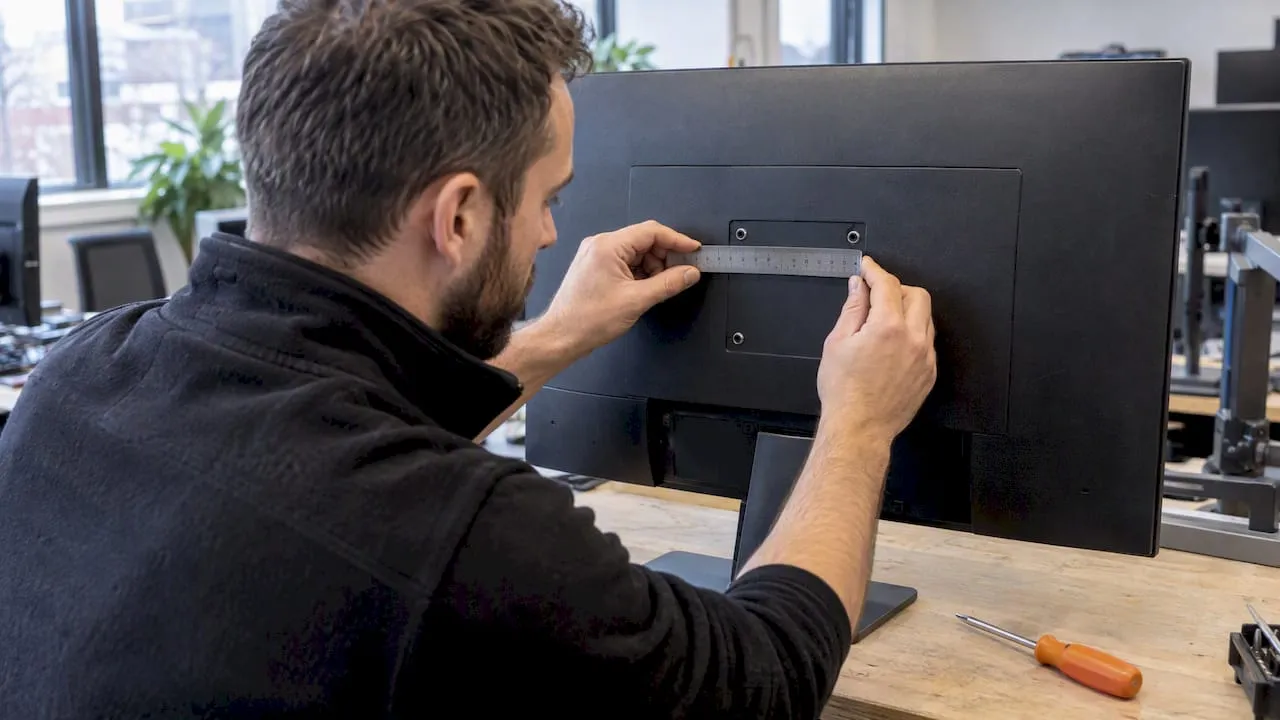
Most modern monitors have four threaded holes on the back, spaced either 75×75 mm or 100×100 mm, which means they fit a standard VESA arm without any adapter. Before buying, check the hole pattern, confirm the screws can reach the threads without hitting a recessed panel, and match the monitor’s weight to the arm’s rated capacity. You’ll find the answers on the sticker on the back of the monitor or in the user manual.
TL;DR:
- Measure hole spacing center to center; common patterns are 75×75 mm and 100×100 mm, while larger VESA variants depend on weight, not screen diagonal.
- Recess depth can require longer screws or spacers; check the manufacturer’s instructions because screws that are too long can damage the panel.
- Compare the arm’s total load rating with the combined monitor weight, including accessories; dual arms have a combined capacity, not a per screen limit.
- For monitors without accessible holes, check model specific manufacturer kits first, then adapters; choose a desk stand if no option fits safely.
- Confirm the clamp suits the desktop’s thickness and material; on height adjustable desks, a frame mounted arm moves with the desk.
Table of Contents
- How to tell if your monitor is VESA compatible
- Measuring hole spacing, screw sizes and recessed mounts
- Weight, arm capacity and desk mounting considerations
- If your monitor isn’t VESA compatible: adapters and alternatives
- Why monitor arms improve workplace ergonomics
- Compatibility considerations with multi-monitor setups relevant for office environments
- Integration of VESA monitor arms with height-adjustable desks
- UK workplace standards that affect monitor mounting and setup
- Lessons from fitting monitors across office estates
- How we can help with monitor mounting and office fit-outs
- FAQ
- Sources
How to tell if your monitor is VESA compatible
Checking compatibility takes a few minutes if you work through it in order.
- Look at the back of the monitor. Four threaded holes arranged in a square pattern, usually near the centre of the rear panel, point to a built-in VESA mount.
- Find the model number and check the specification sheet. The manual or product page will usually list the VESA MIS or FDMI pattern directly, which saves you measuring by eye. The VESA FDMI standard sets out these part sizes and the hole patterns tied to them.
- Check for a removable cover. Some monitors hide the mounting holes behind a plastic panel or a stand bracket that unclips, so what looks like a flat back may still have threads underneath.
Keep a few basic items to hand:
- A tape measure for checking hole spacing in millimetres.
- A small set of screwdrivers (Phillips and flathead) to remove covers or stands.
- A phone camera to photograph the rear panel before you order anything, which is handy if you’re sourcing arms for several desks at once.
A monitor without a VESA logo isn’t automatically unsuitable. According to the Wikipedia overview of VESA mounting, manufacturers don’t always display the compatibility mark even when the pattern itself matches a recognised standard, so measurement is more reliable than logo-spotting.
Measuring hole spacing, screw sizes and recessed mounts
Always measure centre-to-centre, not edge-to-edge. Put the tape measure on the centre of one screw hole and read across to the centre of the diagonally opposite hole, or measure horizontally and vertically between the two pairs. A 75×75 mm pattern means 75 mm between hole centres both horizontally and vertically; a 100×100 mm pattern follows the same logic at 100 mm.
- Small and mid-sized monitors typically use 75×75 mm or 100×100 mm, the two patterns most arms are built to accept.
- Screws are commonly M4 on smaller patterns, with M6 or sometimes M8 on larger, heavier screens.
- Recessed mounting areas often require screws longer than those supplied with some arms, especially when mounted in recessed panels.
The hole spacing determines fit; the recess depth determines whether your screws will actually reach. Many monitors set their mounting holes into a shallow recessed panel rather than a flat surface, and the FDMI standard permits this as long as there’s enough clearance for the plate and screws to seat properly. A deep recess can mean the standard screws supplied with an arm are too short to bite, or that you need spacers to bridge the gap. Guidance on VESA mount recesses confirms that recessed backs are common and acceptable, but screw length and clearance should be checked against the manufacturer’s instructions before fitting, since forcing a screw that’s too long can damage the panel inside.
Weight, arm capacity and desk mounting considerations
Weight is usually the deciding factor, more than screen size. A compact 27-inch panel and a large curved ultrawide can carry very different weights despite similar footprints, and the FDMI standard ties its part variants to weight ranges rather than diagonal measurements alone. A guide to VESA mounting standards makes the same point: weight should take priority over screen size when choosing the right mounting hardware, since a heavier smaller display can demand a larger part than a lighter, bigger one.
- Check the arm’s maximum load rating against the monitor’s listed weight, including any extra weight from a webcam or light bar.
- Confirm the desk clamp or grommet range matches your desktop thickness and material.
- Avoid clamping onto thin or hollow desktops without checking the arm’s clamp specification first, since some clamps need a minimum thickness to grip securely.
Pro Tip: Before fitting arms across multiple desks, test one on a sample desktop that matches your actual stock, not just the display unit in a showroom.
If your monitor isn’t VESA compatible: adapters and alternatives
Some monitors, particularly ultra-thin or all-in-one designs, don’t have exposed mounting holes. A few routes still work.
- Plate adapters bolt onto the monitor’s existing stand mount and give you a flat VESA surface to attach an arm to.
- Strap or clamp adapters wrap around the monitor body for displays with no accessible screw points at all, useful as a last resort.
- Manufacturer VESA kits, sold for specific models, are worth checking first since they’re built to fit exactly.
Whichever option you choose, check that the adapter’s pattern matches your arm, that screws can still reach without obstruction, and that its weight rating covers your monitor. If none of these fit comfortably, a simple desk stand may be the more practical choice than forcing an adapter onto a monitor it wasn’t designed for.
Why monitor arms improve workplace ergonomics
Fitting a monitor correctly changes more than desk tidiness. A properly mounted arm lets you adjust height and distance to suit posture, frees up desk space, and makes it easier to angle screens for shared viewing. Our guide to why monitor arms matter for your office setup covers these benefits in more depth.
For procurement teams fitting out multiple desks, standardising on one arm model simplifies ordering, spares and maintenance across an office. We offer delivery across the UK mainland and pricing options for bulk orders, which can help with specifying the same arm consistently rather than mixing models desk by desk.
Compatibility considerations with multi-monitor setups relevant for office environments
Dual and triple-monitor setups add a layer of checking beyond a single screen. Each monitor needs its own confirmed VESA pattern, since mixing a 75×75 mm screen with a 100×100 mm screen on the same dual arm means checking that the arm’s mounting plates cover both sizes, or fitting separate plates for each.
Weight adds up quickly across multiple screens. A dual arm has a combined load rating, not a per-screen one, so two mid-weight monitors can push close to the limit even if each one individually seems light. Check the arm’s specification for its total capacity, not just the figure for a single screen.
Desk space and cable routing also matter more with multiple screens. A dual or triple arm with proper cable management keeps desks tidy across a row of workstations, which matters when consistency across an office is part of the brief. Where desks are shared or hot-desked, arms with quick-release plates make swapping monitors between positions faster, without needing to unscrew and refit each time.
Integration of VESA monitor arms with height-adjustable desks
Pairing a VESA arm with a height-adjustable desk keeps the monitor moving with the desk rather than staying fixed at a seated height once the desk rises for standing use. Without an arm, a monitor on a fixed stand often ends up too low when the desk is raised, forcing an awkward neck angle.
An arm mounted to the desk frame, rather than resting its clamp on the desktop surface, moves with the desk through its full range and avoids the need to readjust the monitor every time the desk height changes. This also frees up desk surface area, which matters on smaller sit-stand desks where a bulky monitor stand eats into usable space.
Our guide to setting up height-adjustable desks covers clamp types and desk frame compatibility in more detail, which is worth checking before ordering arms for an office already using sit-stand desks.
UK workplace standards that affect monitor mounting and setup
Employers have duties under the Health and Safety (Display Screen Equipment) Regulations to assess workstations used for computer-based work and address risks from poor screen positioning. While the regulations don’t specify VESA patterns or arm models, they do require that screens can be positioned to suit the person using them, which is exactly what a correctly fitted, adjustable arm makes possible.
A monitor that can’t be raised, tilted or moved closer or further away makes it harder to meet that requirement comfortably for every member of staff, particularly in shared or hot-desked environments where several people use the same screen through a working week. Fitting arms correctly, with the right hole pattern, screws and weight rating, is a practical step towards workstations that can be adjusted to fit the person rather than the other way round.
Lessons from fitting monitors across office estates
We’ve seen the same mistakes come up repeatedly on installations: screws too short for a recessed back, or an arm clamped onto a desktop it was never rated for. A quick measurement checklist, hole spacing, recess depth, desk thickness, catches most of these before they become a returned order.
For larger installs, always request technical data sheets and a sample fit before committing to bulk numbers.
— Furniture
How we can help with monitor mounting and office fit-outs
We stock monitor arms and mounting accessories alongside the rest of our office furniture range.

- Check the technical data sheet for any arm against your monitor’s VESA pattern and weight before ordering in bulk.
- Our quick-release monitor arms suit offices that swap monitors between desks regularly.
- For site-specific advice on fitting across multiple desks, get in touch before placing a large order.
Browse our office accessories range to find a monitor arm that matches your setup.
FAQ
What are the different types of monitor arm mounts?
Monitor arm mounts generally fall into clamp-on, grommet (through-desk) and wall or pole-mounted types, with single, dual and multi-monitor arm variants within each. The right choice depends on your desk material and thickness, and whether you need to move monitors between positions regularly.
Are all monitors compatible with a monitor arm?
Not every monitor has an exposed VESA mount, but most modern screens with four threaded rear holes in a 75×75 mm or 100×100 mm pattern will fit a standard arm, as confirmed by the VESA FDMI standard. Monitors without exposed holes can often still be fitted using a plate or strap adapter.
Does my monitor have a VESA mount?
Check the back of the monitor for four threaded holes, usually near the centre, and check the user manual or product specification for the listed VESA pattern. A removable cover or stand bracket sometimes hides the holes, so a missing logo doesn’t necessarily mean no VESA mount exists, according to the Wikipedia entry on VESA mounting.
What are the different VESA mount sizes?
The most common small and mid-sized monitor patterns are 75×75 mm and 100×100 mm, measured centre-to-centre between the screw holes. Larger displays use bigger VESA part variants tied to weight rather than screen size alone, as set out in the FDMI standard and explained in this guide to VESA mounting standards.
Sources
- VESA mounts: what you need to know
- VESA Flat Display Mounting Interface (FDMI) v1.1
- VESA mount — Wikipedia
- The quick guide to VESA mounting standards — MakeUseOf